FIRST CONFIGURATION
Account, access and offline use
Upon first use, create a CRONVI account or log in with the existing one. When the device is online, CRONVI associates the archive with your account and synchronizes the available changes.
Before a race open Accounts and check the date until which offline use is permitted. The tender functions can thus continue to function even without network coverage within the indicated period.
Sign in with the same email and wait for the synchronization to complete before changing your data. Also export a JSON file from Archive and backup to keep a cloud-independent copy.
PRE-RACE CHECK
Preparation before the race
Complete these checks a few minutes early and never while driving.
- In Settings choose language, theme and audio profile.
- Align theNow race to an official reference and verify the displayed fix.
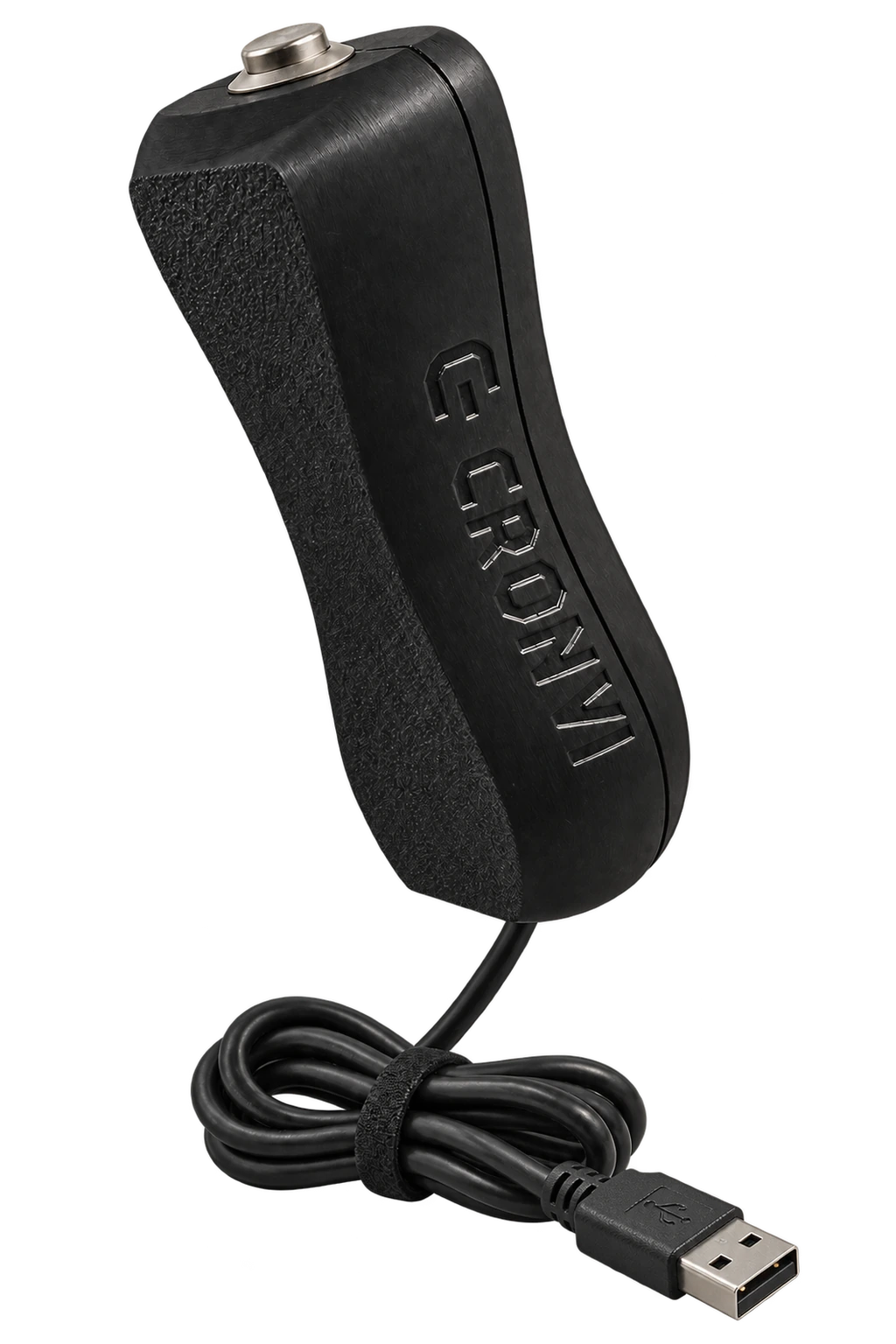
- Open Button, connect the Bluetooth command if you intend to use it and try at least one press.
- Run Test audio and control your phone's media volume.
- Open the race and check the program, durations, start mode, CO and average tests.
PLAN
Create a rally or training session
From My races select New race. For a trial session choose instead Training. Enter name, date and, optionally, a vehicle in the Garage.
Duration and start mode.
Theoretical time, precision and penalties.
Distance and average changes.
You can add PCs manually or import a CSV program. From the race menu you can edit, duplicate, archive or delete the event.
The penalty rules entered in CRONVI are personal and must always be compared with the specific regulations of the event.
PC SEQUENCE
Timed trials and start modes
The first test, PC1, always starts manually by pressing START. For each subsequent PC you can choose:
- Manual
- At the end of the previous PC, press when you want to start the next one.
- In time
- The next PC starts automatically at the end of the programmed duration of the previous one.
- Upon passing
- The pressure that registers the previous step starts the next countdown at the same time.
The command Make all concatenated after PC1 applies timed start to all subsequent trials. Always check the mode shown under each PC's name.
DETECTION
Use the timed-trial stopwatch
Press START on the screen, on a compatible keyboard, or on the physical button. The large number shows the countdown of the current test; the smaller hour at the top shows the Race Time.
At each detection, press only once. The passage is saved immediately. From the menu you can cancel the last step, correct the reference from −99 to +99 cents, recover a missing step to zero or return to the race sheet.
It is marked as estimated and does not enter the statistics of measured times. Reset keep the steps and prepare a new session.
TIME CONTROL
Time controls
To create a CO, indicate name, theoretical time, race day, reading to the full minute or exact second, lead and delay points and any maximum delay limit.
Opening Time controls, each line shows the status of the window and the last recorded step. When in transit, press Mark transit or use the physical button. CRONVI saves the time and calculates the estimated penalty.
The alignment of the race time is fundamental. The penalty shown is an estimate and does not replace the official data of the organizer.
AVERAGE TAX
Average-speed tests
Enter the total distance and one or more averages. The distances can be progressive from the starting point or represent the complete length of the individual sections. You can set the starting time or start the session manually.
- Calibrated distance
- Current average
- GPS speed
- Signal accuracy
- Deviation from theoretical time
Averaging changes are automatically applied to the programmed distance. Before START grant access to the precise location and wait for a stable GPS signal.
The phone's GPS is useful for training and estimation, but does not replace a calibrated or approved wheel probe.
GPS DISTANCE
Tripmaster GPS
Wait for the screen to indicate GPS acquired before leaving.
Measure the entire session journey.
Measure the distance since the last reset.
You can reset TRIP from the dedicated command or with the physical button. The plus and minus commands realign the distance to the road book using the pace chosen in the Settings.
To calibrate, drive an official stretch of at least 1km, pause and select Calibrate on the route. Enter the official distance and save the coefficient.
COUNTDOWN
Audio, beeps and warnings
- Voice
- Spoken Countdown. The recorded voice is available in Italian.
- Beep
- Wordless signals, suitable for all languages.
- Silent
- No audible warning.
You can choose how many seconds to start the warning, activate the continuous beep at the end, the 30 second warning and the START beep. THE'Audio preview compensates for a perceived delay in playback. After each change use Test audio.
ARCHIVE
Timing records, results and backups
Saved steps shows each lap, bearings, discards and estimated passes. In Results you can insert the official times received from the organizer without modifying the originals.
From Archive and backup you can export races, tests, laps, results and settings to a JSON file. The import adds the races without deleting the existing ones; any duplicates become new copies. You can also import a PC program in CSV.
Keep a recent backup off your phone, especially before a reinstallation or device change.
PROGRESSION
Garage, Career and CRONVI AI
In the Garage you can save cars, photos and characteristics and indicate the main car. A car can be associated with races and training and remains in the session history.
Career calculate accuracy, consistency, balance and progression from real passes. You can set a personal mission, add achievements to your palmarès and unlock achievements.
CRONVI AI interprets the metrics and proposes a training session, without affecting the stopwatch or changing the readings. At least 10 measurements are needed for the first analysis; from 30 detections and with more sessions the profile becomes more reliable.
SUBSCRIPTION
CRONVI Pro and purchases
Open CRONVI Pro to choose the plan available on your device. After purchasing, wait for confirmation before closing the app.
If you had already purchased from the same store, use Restore purchases. For a promotional code received via email, open the activation link, log in with the account you wish to enable and enter the code.
Subscriptions purchased through the App Store or Google Play are managed from your Apple or Google account settings.
QUICK RESOLUTION
If something doesn't work
No audio +
Check audio profile, media volume, silent mode and Bluetooth output. Run Test Audio again.
Button not detected +
Check the Bluetooth pairing, reopen the Button page and repeat the signal test.
Unstable GPS +
Enable Precise Location, move outdoors and wait for acceptable accuracy before leaving.
Archive to recover +
Do not uninstall the app or delete its data. Go back online and select Retry opening.
Missing data after a reinstallation +
Log in with the same email used previously and wait for the synchronization to complete.
If the problem continues, note your device model, operating system, app version, and steps to reproduce the error. Contact support →
RESPONSIBILITY
Correct use and safety
While driving, CRONVI must be managed by the navigator. The pilot does not have to interact with the phone. Secure the device securely and make sure it does not limit your view of the road or on-board instruments.
Always check times, penalties and procedures on the specific race regulations. CRONVI is a support tool: times, rankings and official data remain those published by the organizer.
CRONVI BUTTON INSTRUCTIONS
Plug it in once.
Use it with a gesture.
The Button sends the main command to the app without forcing you to look for the button on the screen. Here you will find the complete configuration, from power supply to connection test.